
SPFx, Azure Functions and Table Storage with Entra ID
Translated from the Spanish original. Read in Spanish
A common challenge in SharePoint development is letting users work with back-end data without exposing secrets or fully trusting what the client sends. This post describes a pattern that solves both problems: an SPFx extension acquires an Entra ID token silently and sends it to an Azure Function that validates the JWT server-side, extracts the user’s identity from the signed claims and processes the data in Azure Table Storage.
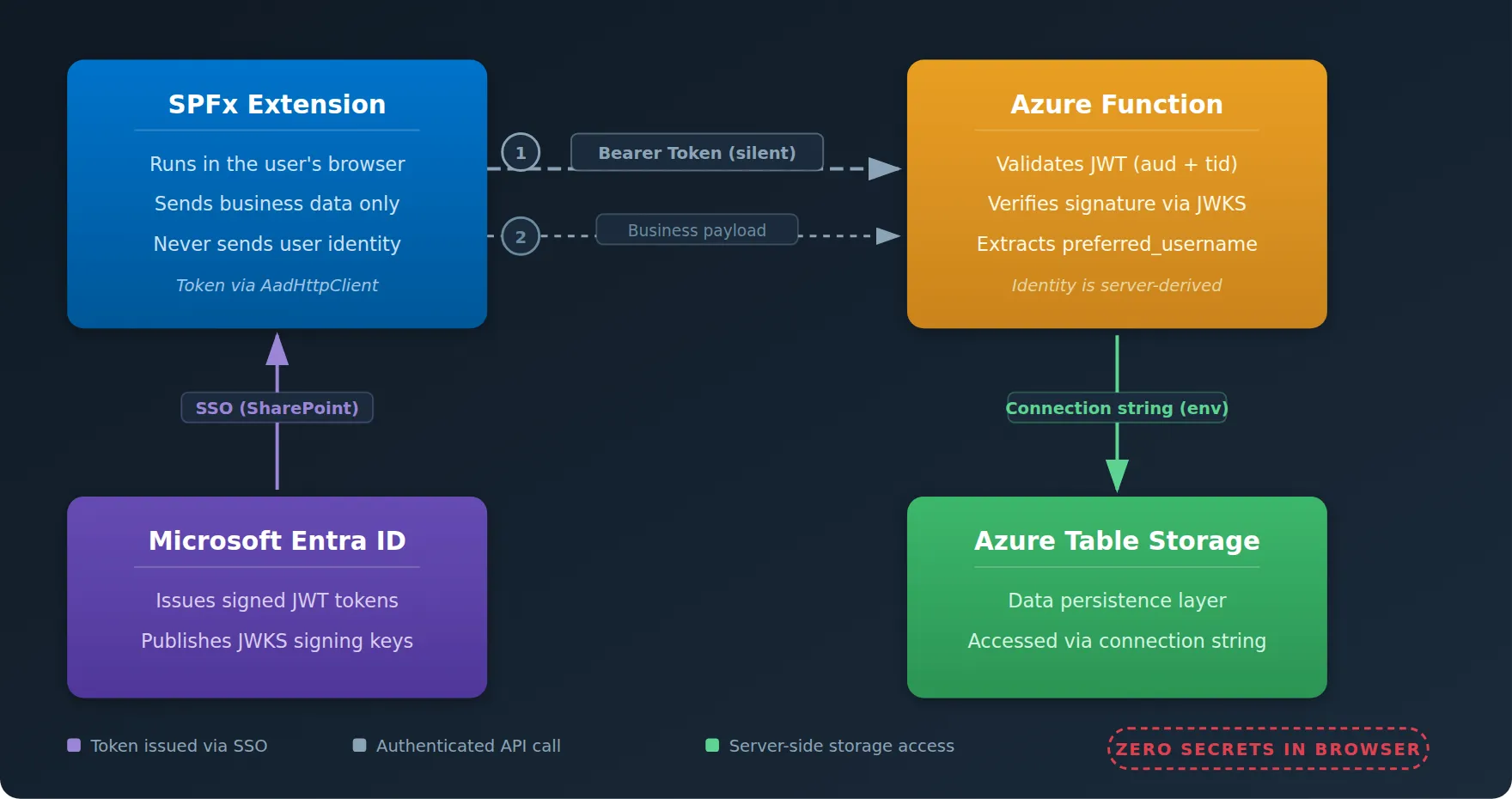
Secure identity-flow architecture between SharePoint and Azure.
Architecture
Three key design decisions define this model: the client never identifies the user directly; the identity is extracted from the signed token on the server. The Function validates the JWT itself instead of relying on Easy Auth. And finally, the storage connection string lives only in the Function App’s environment variables, so it’s never visible to the browser.
Step 1 — Register the API App in Entra ID
Create an App Registration in Entra ID to represent the Azure Function’s API. Under “Expose an API”, set the Application ID URI (api://<client-id>) and add a scope such as access_as_user with admin consent.
Make a note of the Application (client) ID and the Directory (tenant) ID; the Function needs both to validate tokens.
Step 2 — Configure the SPFx extension
In the project’s package-solution.json file, declare a webApiPermissionRequests entry specifying the resource and scope of the App Registration. After deploying the .sppkg package, a SharePoint administrator must approve the request in the SharePoint Admin Center under “API access”.
Once approved, SPFx’s AadHttpClient component handles acquiring the token transparently. The user is already signed in to SharePoint through Entra ID, so the token is obtained silently (no pop-ups or redirects) and attached as a Bearer header to every request. The request payload should only contain business data; the user’s identity is never added manually.
Step 3 — Azure Function with manual JWT validation
Instead of delegating authentication to Easy Auth at the host level, the Function validates tokens explicitly. It reads the Authorization header, extracts the Bearer token and verifies it against the signing keys Microsoft publishes (your tenant’s JWKS endpoint).
The validation checks:
- aud (audience): The token is intended specifically for your App Registration.
- iss (issuer) and tid (tenant): The token was issued by your Entra ID tenant.
- Signature: The token is cryptographically signed by Microsoft and can’t be forged.
The Function’s authLevel is set to anonymous, which simply disables the built-in key mechanism of Azure Functions. The custom token validation at the start of each handler is the real security gate.
Step 4 — Azure Table Storage
Create a Storage Account and a table, then store the account name, the key, the tenant ID and the expected audience under Configuration -> Application Settings of the Function App. The SPFx extension knows nothing about the storage account or its credentials.
When the Function writes entities, it enriches them with the identity extracted from the token: fields such as createdBy or modifiedBy are filled from the JWT claims, never from the request body sent by the client.
Conclusion
This pattern (SPFx extension, Azure Functions and Azure Table Storage, integrated with Entra ID) gives SharePoint a lightweight, serverless data layer. The core principle: don’t trust the client for identity. Let Entra ID sign the token, let the Function validate it and decide who the user is, and let the client’s only job be sending business data along with a valid Bearer token.

AI Platform Engineer & Full-Stack Developer
Building Enterprise Integrations & Automations
- What an LLM really is — and how to measure it with Artificial Analysis - 12 September 2026
- AI SDLC: a compendium of best practices for developing with AI - 19 June 2026
- Agentic Patterns and the Many Faces of RAG - 25 May 2026