
Interface graphique PowerShell
Traduit de l'original en espagnol. Lire en espagnol
Exemple d’un script simple avec interface graphique.
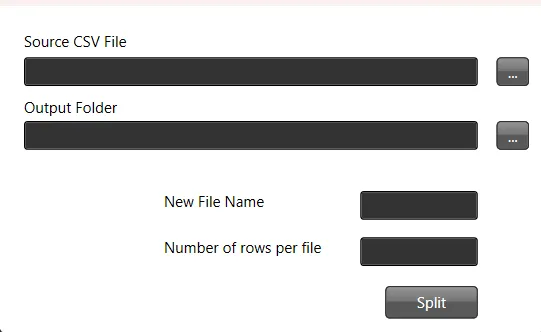
Dans ce tutoriel, nous allons créer un script PowerShell qui propose une interface graphique (GUI) pour découper un fichier CSV en plusieurs fichiers selon un nombre de lignes donné.
Étape 1 : définir la fonction de découpage du fichier
D’abord, nous définissons une fonction qui se chargera de découper le fichier CSV. Elle a besoin du chemin source, du nombre maximal de lignes par fichier, du chemin de destination des fichiers produits et d’un modèle de nom de fichier.
function splitthefile($path_source_csv, $max_number_rows, $path_result_files, $filename) {
    # Do something
}
Étape 2 : charger les assemblies nécessaires à la GUI
Ensuite, nous chargeons les bibliothèques .NET nécessaires pour créer la GUI.
Add-Type -AssemblyName PresentationFramework, PresentationCore, WindowsBase, System.Windows.Forms, System.DrawingÉtape 3 : personnaliser le thème et les icônes de la GUI
L’apparence de la GUI peut être personnalisée à l’aide de thèmes et d’icônes.
$ThemeFile = "$local_path\Themes\ExpressionDark.xaml"
$icon =  "$local_path\Themes\favicon.ico"
Étape 4 : créer la mise en page de la GUI en XAML
Ensuite, nous définissons la mise en page de la GUI en XAML. Vous pouvez utiliser Visual Studio pour générer le XAML visuellement.
$inputXML = @"
<Window x:Class="csv.MainWindow"
        xmlns="http://schemas.microsoft.com/winfx/2006/xaml/presentation"
        xmlns:x="http://schemas.microsoft.com/winfx/2006/xaml"
        xmlns:d="http://schemas.microsoft.com/expression/blend/2008"
        xmlns:mc="http://schemas.openxmlformats.org/markup-compatibility/2006"
        xmlns:local="clr-namespace:specialboackup"
        mc:Ignorable="d"
        Title="CSV Splitter" Height="300" Width="450" Icon="$icon">
        <Window.Resources>
        <ResourceDictionary>
           <ResourceDictionary.MergedDictionaries>
               <ResourceDictionary Source="$ThemeFile" />
           </ResourceDictionary.MergedDictionaries>
        </ResourceDictionary>
   </Window.Resources>
   <Grid>
        <Canvas HorizontalAlignment="Left" Height="251" Margin="10,10,0,0" VerticalAlignment="Top" Width="424">
            <Button x:Name="get_source" Content="..." Canvas.Left="388" Canvas.Top="31" Width="26" Height="23" RenderTransformOrigin="-0.963,1.375"/>
            <Button x:Name="split" Content="Split" Canvas.Left="299" Canvas.Top="214" Width="74" Height="26"/>
            <TextBox x:Name="source" HorizontalAlignment="Left" Height="23" TextWrapping="Wrap" VerticalAlignment="Top" Width="363" Canvas.Left="10" Canvas.Top="31" RenderTransformOrigin="0.5,1"/>
            <TextBlock HorizontalAlignment="Left" TextWrapping="Wrap" Text="Source CSV File" VerticalAlignment="Top" Canvas.Left="10" Canvas.Top="10" Width="348" Foreground="Black"/>
            <Button x:Name="get_output" Content="..." Canvas.Left="388" Canvas.Top="82" Width="26" Height="23" RenderTransformOrigin="-0.963,1.375"/>
            <TextBox x:Name="dest" HorizontalAlignment="Left" Height="23" TextWrapping="Wrap" VerticalAlignment="Top" Width="363" Canvas.Left="10" Canvas.Top="82" RenderTransformOrigin="0.5,1"/>
            <TextBlock HorizontalAlignment="Left" TextWrapping="Wrap" Text="Output Folder" VerticalAlignment="Top" Canvas.Left="10" Canvas.Top="63" Width="348" Foreground="Black"/>
            <TextBox x:Name="rows" HorizontalAlignment="Left" Height="23" TextWrapping="Wrap" VerticalAlignment="Top" Width="94" Canvas.Left="279" Canvas.Top="175" RenderTransformOrigin="0.5,1"/>
            <TextBlock HorizontalAlignment="Left" TextWrapping="Wrap" Text="Number of rows per file" VerticalAlignment="Top" Canvas.Left="122" Canvas.Top="175" Width="137" Height="23" Foreground="Black"/>
            <TextBox x:Name="filename" HorizontalAlignment="Left" Height="23" TextWrapping="Wrap" VerticalAlignment="Top" Width="94" Canvas.Left="279" Canvas.Top="138" RenderTransformOrigin="0.5,1"/>
            <TextBlock HorizontalAlignment="Left" TextWrapping="Wrap" Text="New File Name" VerticalAlignment="Top" Canvas.Left="122" Canvas.Top="138" Width="137" Height="23" Foreground="Black"/>
        </Canvas>
    </Grid>
</Window>
"@
Étape 5 : analyser le XAML pour créer la GUI
La chaîne XAML est traitée pour créer les objets de la GUI.
$inputXML = $inputXML -replace 'mc:Ignorable="d"','' -replace "x:N",'N'  -replace '^<Win.*', '<Window'

[void][System.Reflection.Assembly]::LoadWithPartialName('presentationframework')
[xml]$XAML = $inputXML

$reader=(New-Object System.Xml.XmlNodeReader $xaml)
try {
   $Form=[Windows.Markup.XamlReader]::Load( $reader )
} catch {
   Write-Warning "Unable to parse XML, with error: $($Error[0])`n Ensure that there are NO SelectionChanged properties (PowerShell cannot process them)"
   throw
}
Étape 6 : lier les éléments de la GUI aux variables du script
Nous repérons tous les éléments nommés de la GUI et les lions à des variables du script.
$xaml.SelectNodes("//*[@Name]") | %{"trying item $($_.Name)";
    try {Set-Variable -Name "WPF$($_.Name)" -Value $Form.FindName($_.Name) -ErrorAction Stop}
    catch{throw}
    }
Function Get-FormVariables {
 if ($global:ReadmeDisplay -ne $true) {
   Write-host "If you need to reference this display again, run Get-  FormVariables" -ForegroundColor Yellow;$global:ReadmeDisplay=$true
 }
 write-host "Found the following interactable elements from our form" - ForegroundColor Cyan
 get-variable WPF*
}
Étape 7 : définir les gestionnaires d’événements des clics sur les boutons
Des gestionnaires d’événements sont associés aux boutons de la GUI pour exécuter des actions lorsqu’on clique dessus.
$WPFget_source.Add_click({
    $WPFsource.Text=Get-File
})

$WPFget_output.Add_click({
    $WPFdest.Text=Get-Folder
})

$WPFsplit.Add_click({
    $number_rows=$WPFrows.Text.Trim()
    $path_source=$WPFsource.Text.Trim()
    $path_dest=$WPFdest.Text.Trim()
    $wshell = New-Object -ComObject Wscript.Shell
    splitthefile -path_source_csv $path_source -max_number_rows $number_rows  -path_result_files $path_dest -filename $WPFfilename.text.Trim()
    $wshell.Popup("Split complete",0,"Messsage",0x1)
})
Étape 8 : afficher la GUI
Enfin, nous affichons la GUI et attendons que l’utilisateur interagisse avec elle.
$Form.ShowDialog() | out-nullScript PowerShell complet
Voici le script PowerShell complet, tel que décrit dans les étapes précédentes :
function splitthefile($path_source_csv, $max_number_rows, $path_result_files, $filename) {
 # Do something
}

Add-Type -AssemblyName PresentationFramework, PresentationCore, WindowsBase, System.Windows.Forms, System.Drawing

$ThemeFile = "$local_path\Themes\ExpressionDark.xaml"
$icon =  "$local_path\Themes\favicon.ico"

$inputXML = @"
<Window x:Class="csv.MainWindow"
        xmlns="http://schemas.microsoft.com/winfx/2006/xaml/presentation"
        xmlns:x="http://schemas.microsoft.com/winfx/2006/xaml"
        xmlns:d="http://schemas.microsoft.com/expression/blend/2008"
        xmlns:mc="http://schemas.openxmlformats.org/markup-compatibility/2006"
        xmlns:local="clr-namespace:specialboackup"
        mc:Ignorable="d"
        Title="CSV Splitter" Height="300" Width="450" Icon="$icon">
        <Window.Resources>
        <ResourceDictionary>
           <ResourceDictionary.MergedDictionaries>
               <ResourceDictionary Source="$ThemeFile" />
           </ResourceDictionary.MergedDictionaries>
        </ResourceDictionary>
   </Window.Resources>
   <Grid>
        <Canvas HorizontalAlignment="Left" Height="251" Margin="10,10,0,0" VerticalAlignment="Top" Width="424">
            <Button x:Name="get_source" Content="..." Canvas.Left="388" Canvas.Top="31" Width="26" Height="23" RenderTransformOrigin="-0.963,1.375"/>
            <Button x:Name="split" Content="Split" Canvas.Left="299" Canvas.Top="214" Width="74" Height="26"/>
            <TextBox x:Name="source" HorizontalAlignment="Left" Height="23" TextWrapping="Wrap" VerticalAlignment="Top" Width="363" Canvas.Left="10" Canvas.Top="31" RenderTransformOrigin="0.5,1"/>
            <TextBlock HorizontalAlignment="Left" TextWrapping="Wrap" Text="Source CSV File" VerticalAlignment="Top" Canvas.Left="10" Canvas.Top="10" Width="348" Foreground="Black"/>
            <Button x:Name="get_output" Content="..." Canvas.Left="388" Canvas.Top="82" Width="26" Height="23" RenderTransformOrigin="-0.963,1.375"/>
            <TextBox x:Name="dest" HorizontalAlignment="Left" Height="23" TextWrapping="Wrap" VerticalAlignment="Top" Width="363" Canvas.Left="10" Canvas.Top="82" RenderTransformOrigin="0.5,1"/>
            <TextBlock HorizontalAlignment="Left" TextWrapping="Wrap" Text="Output Folder" VerticalAlignment="Top" Canvas.Left="10" Canvas.Top="63" Width="348" Foreground="Black"/>
            <TextBox x:Name="rows" HorizontalAlignment="Left" Height="23" TextWrapping="Wrap" VerticalAlignment="Top" Width="94" Canvas.Left="279" Canvas.Top="175" RenderTransformOrigin="0.5,1"/>
            <TextBlock HorizontalAlignment="Left" TextWrapping="Wrap" Text="Number of rows per file" VerticalAlignment="Top" Canvas.Left="122" Canvas.Top="175" Width="137" Height="23" Foreground="Black"/>
            <TextBox x:Name="filename" HorizontalAlignment="Left" Height="23" TextWrapping="Wrap" VerticalAlignment="Top" Width="94" Canvas.Left="279" Canvas.Top="138" RenderTransformOrigin="0.5,1"/>
            <TextBlock HorizontalAlignment="Left" TextWrapping="Wrap" Text="New File Name" VerticalAlignment="Top" Canvas.Left="122" Canvas.Top="138" Width="137" Height="23" Foreground="Black"/>
        </Canvas>
    </Grid>
</Window>
"@

$inputXML = $inputXML -replace 'mc:Ignorable="d"','' -replace "x:N",'N'  -replace '^<Win.*', '<Window'

[void][System.Reflection.Assembly]::LoadWithPartialName('presentationframework')
[xml]$XAML = $inputXML

#Read XAML
$reader=(New-Object System.Xml.XmlNodeReader $xaml)
try{
   $Form=[Windows.Markup.XamlReader]::Load( $reader )
} catch {
    Write-Warning "Unable to parse XML, with error: $($Error[0])`n Ensure that there are NO SelectionChanged properties (PowerShell cannot process them)"
    throw
}

$xaml.SelectNodes("//*[@Name]") | %{"trying item $($_.Name)";
    try {Set-Variable -Name "WPF$($_.Name)" -Value $Form.FindName($_.Name) -ErrorAction Stop}
    catch{throw}
    }
Function Get-FormVariables {
 if ($global:ReadmeDisplay -ne $true) {
   Write-host "If you need to reference this display again, run Get-  FormVariables" -ForegroundColor Yellow;$global:ReadmeDisplay=$true
 }
 write-host "Found the following interactable elements from our form" - ForegroundColor Cyan
 get-variable WPF*
}

$WPFget_source.Add_click({
    $WPFsource.Text=Get-File
})

$WPFget_output.Add_click({
    $WPFdest.Text=Get-Folder
})

$WPFsplit.Add_click({
    $number_rows=$WPFrows.Text.Trim()
    $path_source=$WPFsource.Text.Trim()
    $path_dest=$WPFdest.Text.Trim()
    $wshell = New-Object -ComObject Wscript.Shell
    splitthefile -path_source_csv $path_source -max_number_rows $number_rows  -path_result_files $path_dest -filename $WPFfilename.text.Trim()
    $wshell.Popup("Split complete",0,"Messsage",0x1)
})

$Form.ShowDialog() | out-null
AI Platform Engineer & Full-Stack Developer
Building Enterprise Integrations & Automations
- Ce qu'est vraiment un LLM — et comment le mesurer avec Artificial Analysis - 12 septembre 2026
- AI SDLC : un recueil de bonnes pratiques pour développer avec l'IA - 19 juin 2026
- Agentic Patterns et les multiples visages du RAG - 25 mai 2026