
Building AI applications with Flowise and Phoenix
Translated from the Spanish original. Read in Spanish

Why Flowise?
Flowise isn’t just another no-code tool: it’s a production-ready platform. It integrates easily with:
- AWS Secrets Manager
- S3 for file storage
- Custom or existing MCP (Model Context Protocol) servers
- Exposed REST APIs to run flows from other systems
- A built-in marketplace with ready-to-use templates
It also supports multi-model orchestration, with more than 100 LLMs, vector databases and embeddings, including OpenAI, Hugging Face, Azure OpenAI and even local inference servers such as Ollama (covered in a previous article). Whether you’re building simple chatbots or complex multi-agent systems, Flowise adapts to your needs.
Other notable capabilities
- Visual flow builder – Drag-and-drop interface
- Human-in-the-loop (HITL) – Manual review checkpoints
- RAG support – Add your own data and build retrieval-augmented generation apps
- SDKs and APIs – Expose your flows as an API or embed them in other apps
- Flexible deployment – Local, on-premises or in the cloud
- Analytics and metrics – Measure usage, performance and behaviour
Observability with Phoenix AI
Observability is key when building LLM-based applications. Flowise integrates with platforms such as Langfuse and Phoenix. In this article we use Phoenix, since it’s lightweight and easy to get running without many requirements.
Phoenix lets you inspect the inputs, outputs and intermediate steps of your AI flows. Ideal for answering questions such as:
What did the model receive? What did it return? Where did the logic fail?
Secure integration with Azure OpenAI
By default, Flowise uses static API keys to connect to Azure OpenAI. However, that approach is neither secure nor scalable in enterprise environments. So I made a small change to support secure authentication through Microsoft Entra ID (Azure AD).
Using OAuth with Entra ID, we authenticate against Azure OpenAI without exposing keys — a more secure solution that’s easier to manage.
🛠 Installing Flowise and customising it for Azure
Here are the steps to install Flowise locally and adapt its authentication for Azure OpenAI.
Step 1: Install PNPM
npm i -g pnpmStep 2: Clone and set up Flowise
git clone https://github.com/FlowiseAI/Flowise.git
cd Flowise
pnpm install
pnpm build
Step 3: Install the Azure Identity SDK
pnpm add @azure/identityStep 4: Modify the Azure OpenAI nodes
Edit these files:
packages/components/nodes/LLMs/Azure OpenAI/AzureOpenAI.tspackages/components/nodes/ChatModels/AzureChatOpenAI/AzureChatOpenAI.ts
Replace the use of static keys with the following code:
import { ClientSecretCredential, getBearerTokenProvider } from '@azure/identity';

const azureTenantId = getCredentialParam('azureTenantId', credentialData, nodeData);
const azureClientId = getCredentialParam('azureClientId', credentialData, nodeData);
const clientSecret = azureOpenAIApiKey;

const credentials = new ClientSecretCredential(azureTenantId, azureClientId, clientSecret);
const azureADTokenProvider = getBearerTokenProvider(credentials, 'https://cognitiveservices.azure.com/.default');

const obj: ChatOpenAIFields & Partial<AzureOpenAIInput> = {
    temperature: parseFloat(temperature),
    modelName,
    azureADTokenProvider,
    azureOpenAIApiInstanceName,
    azureOpenAIApiDeploymentName,
    azureOpenAIApiVersion,
    streaming: streaming ?? true
};
Step 5: Update the credentials configuration (secrets)
Edit packages/components/secrets/AzureOpenAIApi.credential.ts to include the required fields:
{
    label: 'Azure Tenant ID',
    name: 'azureTenantId',
    type: 'string',
    placeholder: 'YOUR-TENANT-ID'
},
{
    label: 'Client ID',
    name: 'azureClientId',
    type: 'string',
    placeholder: 'YOUR-CLIENT-ID'
}
🔐 Note: You can keep using the
azureOpenAIApiKeyfield to store the Client Secret.
Step 6: Rebuild and run Flowise
pnpm build
pnpm start
🔍 Set up Phoenix for LLM tracing
Phoenix is an open source observability platform for LLM flows, created by Arize AI. We’ll run it locally with Docker.
Step 1: Pull the Docker image
docker pull arizephoenix/phoenixStep 2: Run the container
docker run -p 6006:6006 arizephoenix/phoenixThis will expose the interface at:
👉 http://localhost:6006
Step 3: Connect Flowise to Phoenix
- Add the Phoenix node
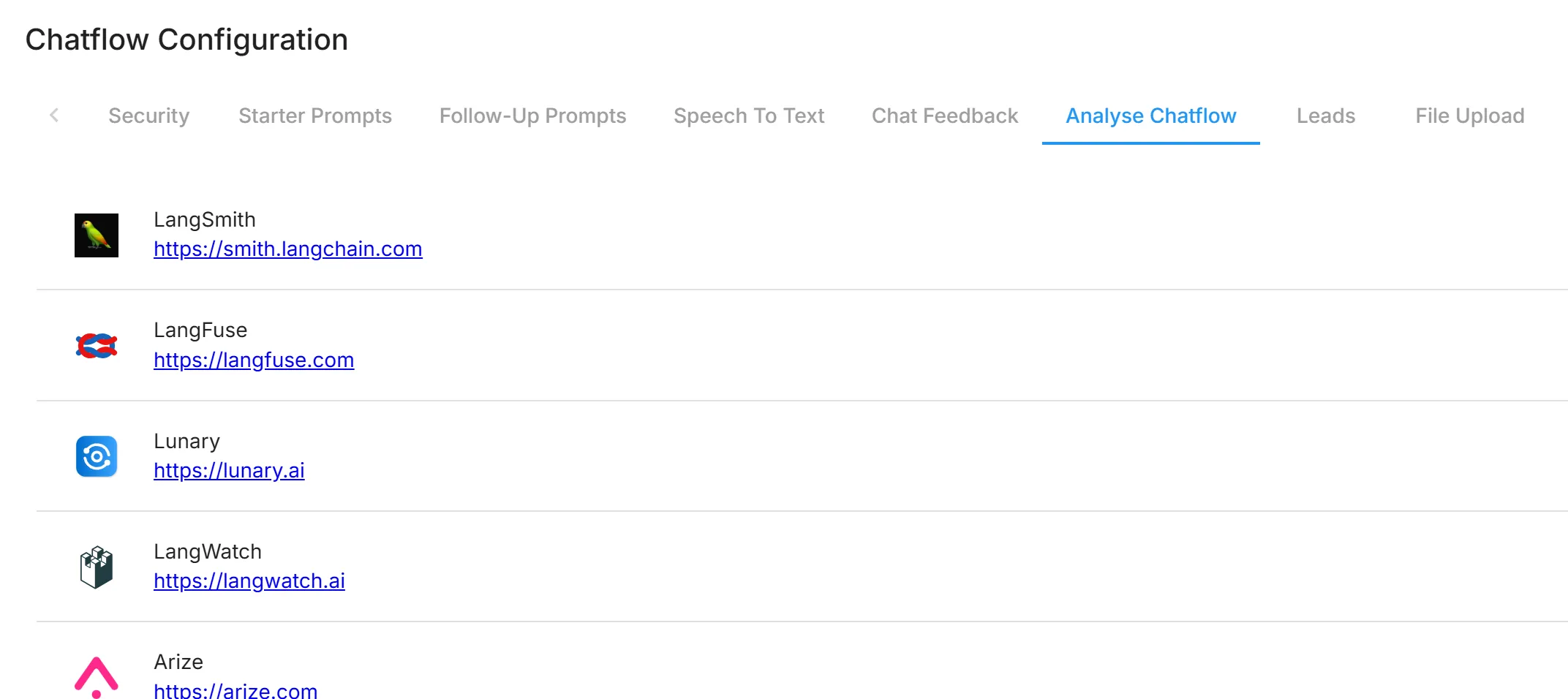
- Make sure it points to
http://localhost:6006
Phoenix lets you:
- Inspect prompts, responses and tool calls
- Visualise agent chains and intermediate steps
- Spot errors and latency, and improve performance
✅ Conclusion
With Flowise and Phoenix, you now have:
- A powerful open source platform for building AI workflows
- Secure integration with Azure OpenAI using Microsoft Entra ID
- Lightweight, effective observability with Phoenix

AI Platform Engineer & Full-Stack Developer
Building Enterprise Integrations & Automations
- What an LLM really is — and how to measure it with Artificial Analysis - 12 September 2026
- AI SDLC: a compendium of best practices for developing with AI - 19 June 2026
- Agentic Patterns and the Many Faces of RAG - 25 May 2026